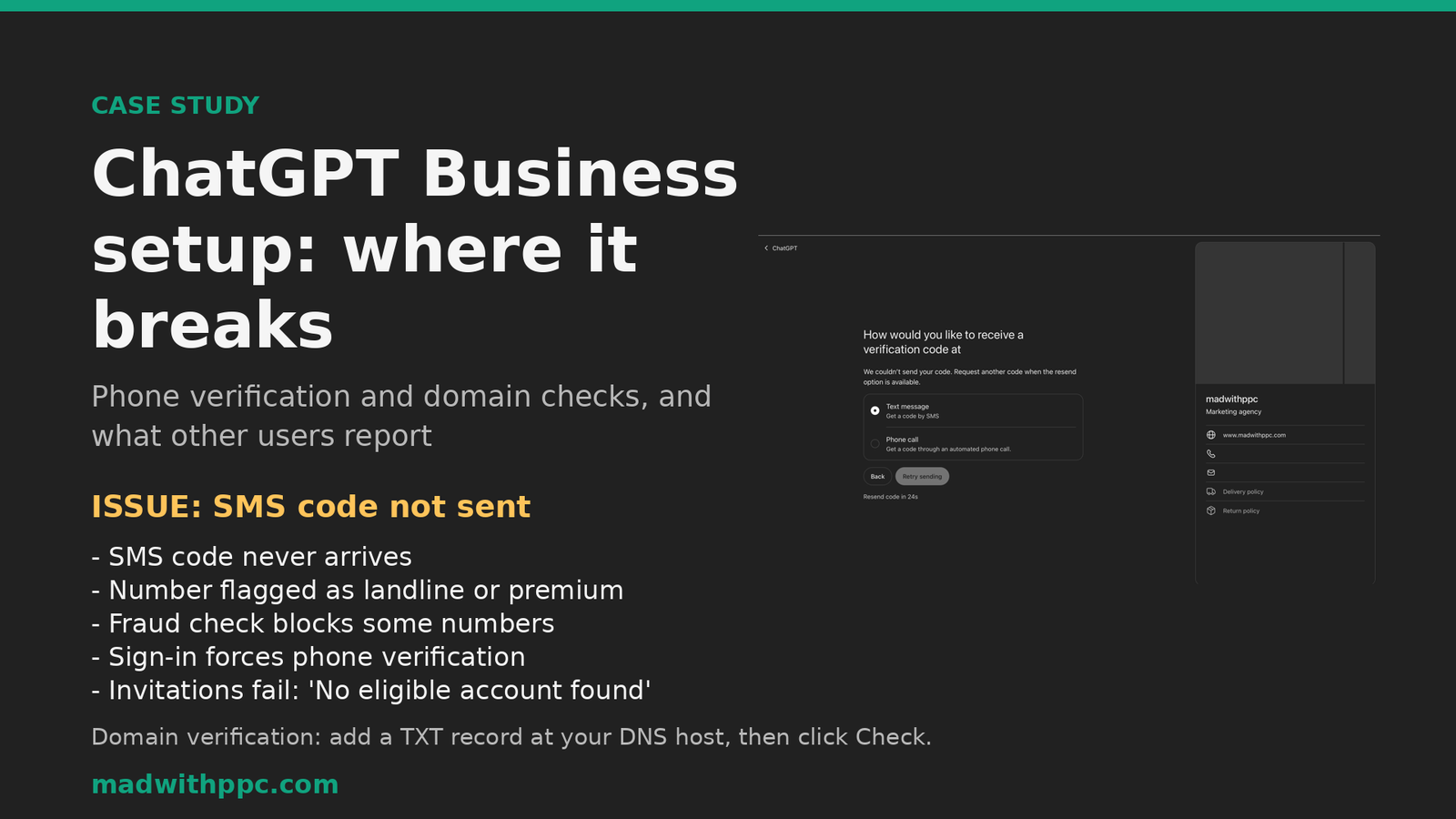
We tried to set up a ChatGPT Business workspace for our agency. Phone verification stopped us before we reached the business details, and domain verification had to be restarted from scratch each time. This is what we ran into, and what other teams have reported.
What we tried
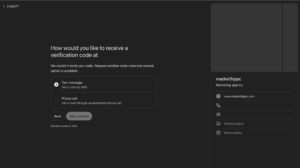
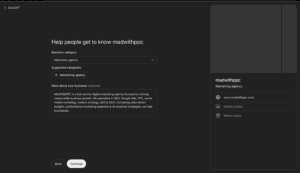
We started a ChatGPT Business sign-up with our agency’s contact number. The flow asked how we wanted to receive a verification code. Text message was selected, and the screen then reported that the code could not be sent. Retrying led to a spinner and a resend timer, and we could not move on to the business details form until phone verification passed.
Issues reported by users
We searched OpenAI’s community forum and help pages. The reports below are anecdotal. None of them proves the product fails for everyone.
| Issue | What users report |
|---|---|
| SMS code never arrives | The number is treated as a landline or premium number. Some users switch to a phone call. |
| Fraud check blocks numbers | An error message says the number cannot receive a code. The network response shows a fraud-check code. |
| Sign-in forces phone verification | Team and Business sign-in asks for phone verification even when email login works. |
| “Unsupported country” error | Sign-up is refused for countries not on OpenAI’s list. |
| Invitations fail | Invitees see “No eligible ChatGPT account found” after accepting. |
Domain verification, step by step
Verifying a domain for a Business workspace needs a TXT record. Each attempt is slow, so we recorded the steps:
- A workspace owner adds the domain under Identity & access.
- Copy the DNS TXT value OpenAI shows.
- At your DNS host, create the TXT record. Set the name to @, or leave it blank.
- Allow up to 24 hours for DNS to propagate.
- Click Check. An attempt expires after 7 days, so start again if it does.
Verification does not expire once it completes. If the add button is missing, or the record cannot be published, OpenAI says to contact Support.
What to plan for
Phone verification can block sign-up before any setup happens. Test the phone number on the day you start, and keep a backup number ready.
Availability depends on country. Check your country against OpenAI’s list before you start.
Seats are required. A Business workspace needs at least two Standard or Premium seats.
Video walkthrough
A 48-second walkthrough of the screens and issues above.